
Setup Work
Use the toggle buttons to show or hide the specific tasks.
Type Task General:
-
The General category Task may not be turned off.
-
General time is reported as part of a sprint. However, the time is not
added to Stories. This time for a spring shows under
Admin.
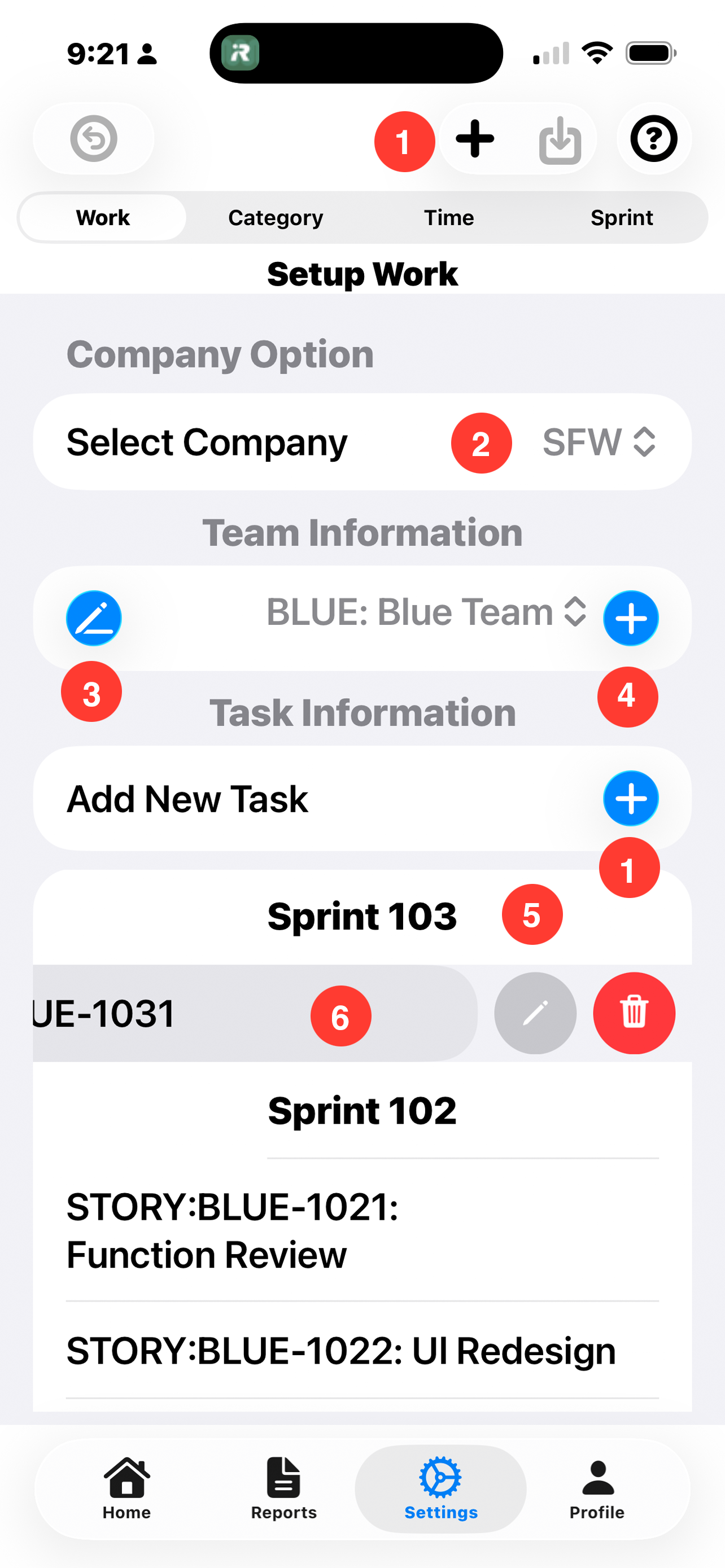
1. ToolBar:
- Undo: Reverse Arrow Button: Tap to undo current changes.
- Add: Plus Sign Button: Tap to create a new task or story.
- Save: Down Arrow Button: Tap to save current changes. Changed are automatically saved when the user moves to a different screen.
- Help: Question Mark Button: Tap to brings up help for the screen.
2. Company Option:
- 2. Select Company: The company name is only shown if you have defined more than one company.
Team Information:
-
The team name is displayed for the current team. A user may wish to set up multiple team names because it is not uncommon for your team to be assigned a story that was created for a different team.
- 3. Pencil Button: Tap to edit and existing team name
- 4. Plus Sign Button: Tap to create a new task or story.
Task Information:
- 1. Plus Sign Button: Tap to create a new task or story. The Plus Sign Button on the ToolBar also creates a new task or story.
Sprint List Information:
-
This is a list of the task and stories in each sprint.
- 5. Swipe left: Swipe on the Sprint name to delete the entire sprint. This will delete all of the stories in the sprint.
- 6. Swipe left: Swipe left on and individual story to edit or delete a Story.
Setup Teams and Sprints -
Setup Teams and Sprints -
Add/Update Agile Team
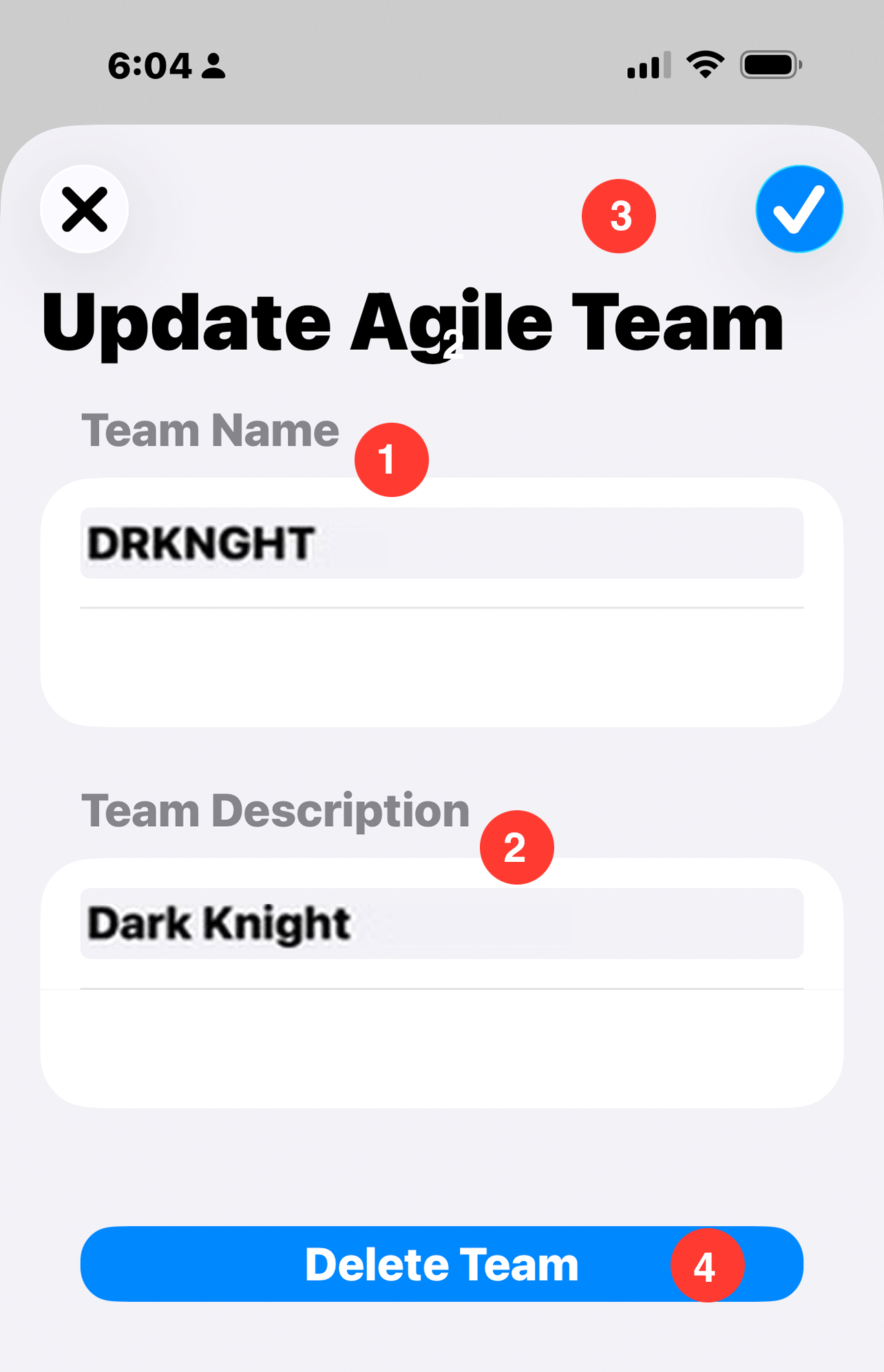
As many agile teams as desired, can be added. The reason for adding more than one agile team is that it is not uncommon for stories outside of your current team to be assigned to you. Therefore, you need to create the team in order to have the proper story name.
Team Information:
- 1. Team Name: The team name is customarily an abbreviation for the team. It is attached to the story number as a prefix. In this example the team abbreviation for the dark Knight is DRKNGHT.
- 2. Team Description: The complete name description.
- 3. + Button: Save the team information.
- 4. Delete Team Button: The delete team button only appears when the team name is being updated.
Add New Task
Click on the + Button: in the ToolBar, or click on the + Button: to the right of Add New Task.
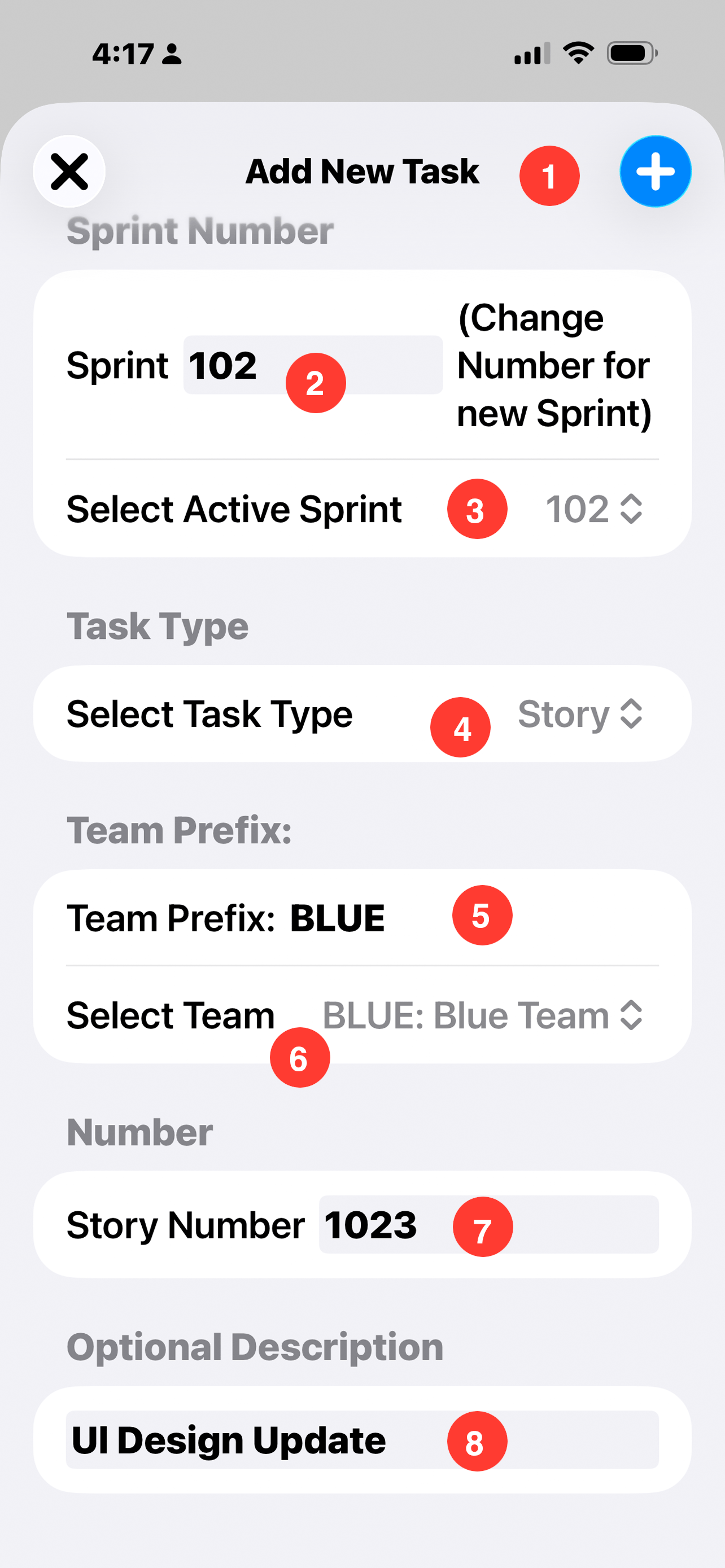
Add New Task:
-
1. + Sign button: Tap to add a new task.
X button: Tap to cancel add task.
Sprint Number:
- 2. Sprint: Sprint number for the new task. Change the sprint number to create a new Sprint.
- 3. Select Active Sprint: Creating a new Sprint does not make it the active Sprint. Tap the drop down to change the active Sprint.
Task Type:
-
4. Select Task Type: Tap the drop down to change the task type.
- Theme
- Epic
- Story
- Task
Team Prefix:
- 5. Team Prefix: The Team Prefix is added to the beginning of the task number.
- 6. Select Team: Tap the drop down to change the active team prefix.
Number:
- 7. Story Number: Enter the story number.
Optional Description:
- 8. Optional Description: Enter a description if desired. It is not required. However, it makes it easier to insure time is charged to the correct story without needing to check JIRA.