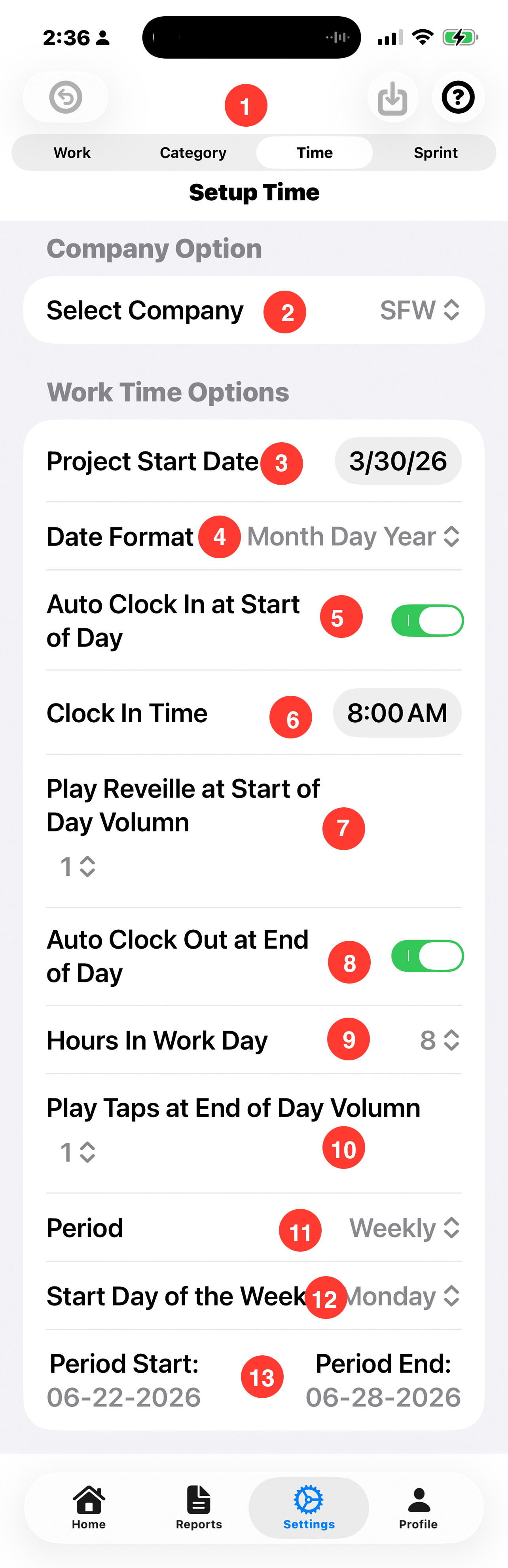
Setup Time
Set up time is used to aid in managing time with the control of several automatic functions. It allows you to specify when the project starts and provides for features such as automatic clock in and clock out at the end of the day. These are useful because when working on a project, you may neglect to clock in at the beginning of the day. By allowing an automatic clock in time to be set, Work will not be missed because of a busy schedule.
1. ToolBar:
- Undo: Reverse Arrow Button: Tap to undo current changes.
- Save: Down Arrow Button: Tap to save current changes. Changed are automatically saved when the user moves to a different screen.
- Help: Question Mark Button: Tap to brings up help for the screen.
2. Company Option:
- 2. Select Company: The company name is only shown if you have defined more than one company.
Time Management Options:
- 3. Project Start Date: The day the user joined the project.
- 4. Date Format: The desired format for displaying dates within the application.
- Month Day Year (default)
- Day Month Year
- Year Month Day
- 5. Auto Clock in at Start of Day Toggle: Time Tracker will automatically clock in at the beginning of the workday.
- 6. Clock in Time: The time of day that one normally starts work.
- 7. Play Reveille at Start of Day Volumn: Alert volumn, 0 to 10. 0 is no sound.
- 8. Auto Clock Out at End of Day: time tracker will automatically clock out when the specified number of hours have been worked for the day. If you are working additional hours, simply clock back in. This feature is designed to prevent logging of time if the user does not sign out at the end of the day. The purpose of this is to prevent the sprint time from becoming distorted.
- 9. Hours in Work Day: the normal number of hours in the workday. Most consultants need approval to bill more than the specified hours. By having this cut off time, it prevents hours being logged past the normal workday. If you clock back in, time will be recorded until you clock back out.
- 10. Play Taps at End of Day Volumn: Alert volumn, 0 to 10. 0 is no sound.
- 11. Billing Period: Billing. Is based on how the company wishes to record time. Example, monthly, weekly, biweekly ECT.
- 12. Start Day of the Week: This is the start day for the Billing Period. It will change based on which type of period was selected..
- 13. Period Start/Period End: The start and end of the billing based on the above selections..