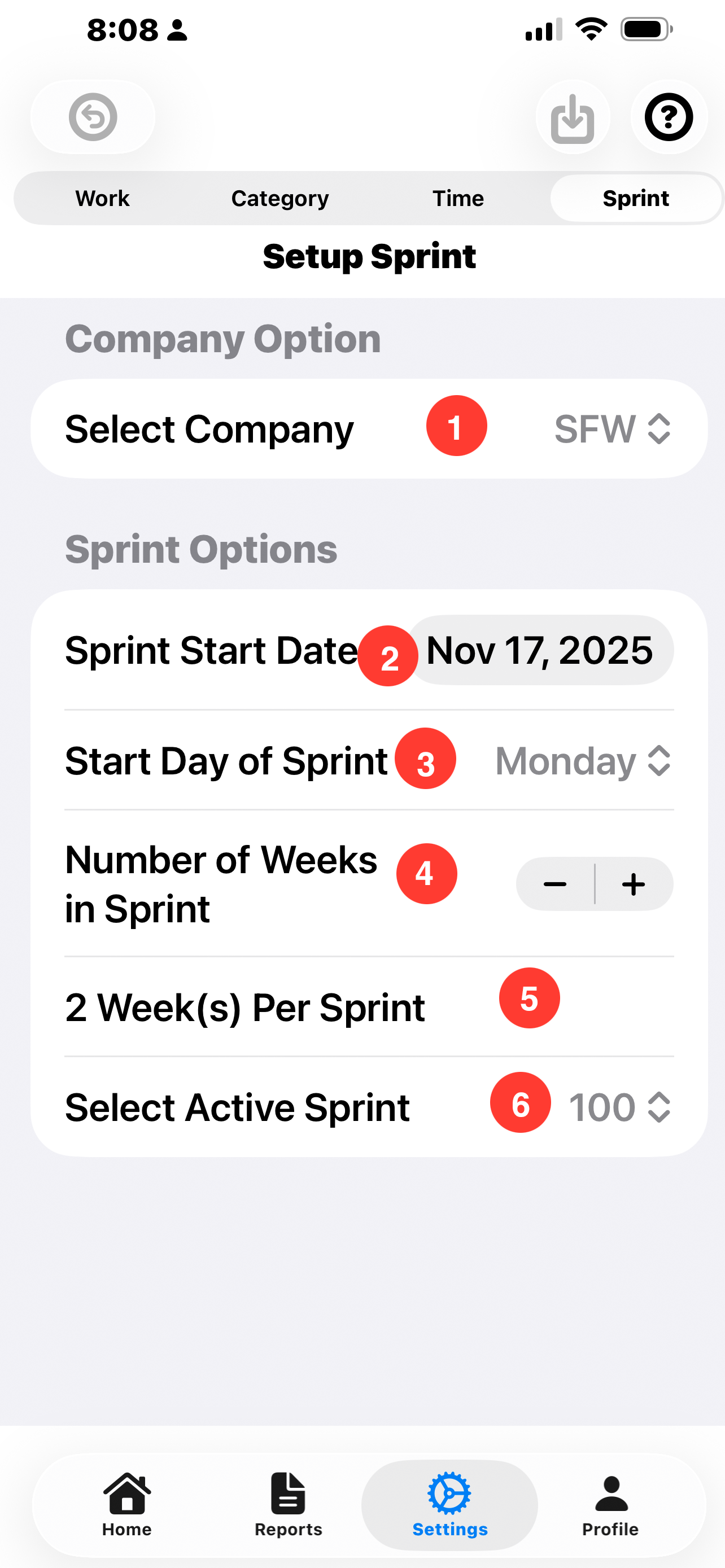
Setup Sprint
Sprint setup defines when a sprint starts and how long the sprint lasts. In the real world sprints do not necessarily start on time. The sprint plan may be to start on Monday. However, the Scrum master may not start the sprint until Tuesday. As a user of time tracker, you may switch sprints whenever you desire. Sometimes you may need to go back to an older story and add some additional times to that story. In that case, you would select that to be the active sprint.
ToolBar:
- Undo: Reverse Arrow Button: Tap to undo current changes.
- Save: Down Arrow Button: Tap to save current changes. Changed are automatically saved when the user moves to a different screen.
- Help: Question Mark Button: Tap to brings up help for the screen.
1. Select Company:
-
You may track time for more than one company. If you are a contractor, you
may have multiple clients. As an individual, you can set up a company of
'self'
and then track your own time however you please.
Sprint Options
2. Sprint start date:
-
The start date normally is set up one time matching the day of the week
when the sprint starts. It is not necessary to continue to update this
date.
3. Start day of Sprint:
-
Pick the day of the week which does Sprint begins.
4. Number of weeks in Sprint:
-
Set the number of weeks your company uses for a Sprint. Tap the minus or plus selector to subtract or add weeks to the sprint.
5. Week(s) Per Sprint:
-
The current number of weeks for a Sprint. Use the above selector to change this number.
6. Select Active Spread:
-
This is the sprint number currently in progress. Changing this sprint
number will cause all items for that sprint to be displayed on the time
tracking view.