Sprint Reporting
Enter your information. This data is used to send time reports to yourself. Reports can be saved to the iCloud are e-mailed to you at work.
ToolBar:
- Help: Question Mark Button: Tap to brings up help for the screen.
Company Selection:
-
The company selection is only shown there is more than one company..
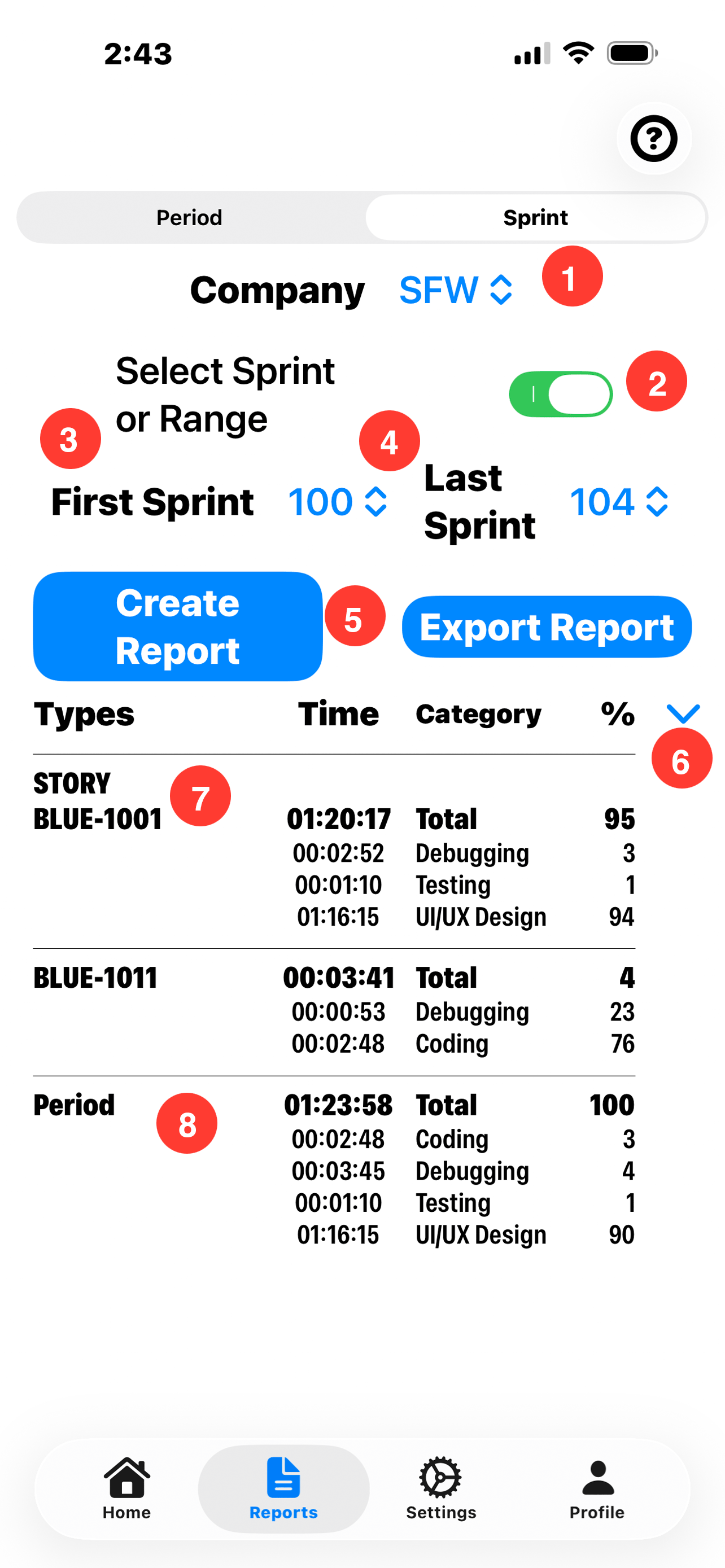
- 1. Company Selector: Tap on the company selector to change the active company.
Report Type Selection:
-
Select the Sprints for this report cycle. One or more Sprints may be included in this report.
- 2. Sprint or Range Toggle: Toggle the select for a single sprint or range of sprints, if more than one sprint is desired.
- 3. First Sprint: Use the drop down to select the beginning sprint.
- 4. Last Sprint: Use the drop-down to select the ending sprint. If the report is for only a single sprint, both values should be the same or the selection range. Selector should be turned off.
-
5. Create Report Button: Tap to generate the report.
Export Report button: Onces a report is generated, the Export Report button appears. Tap to create a file to be used in other systems.
Report Section:
-
A report is created by task and story. General time is not included in the sprint report. Therefore, the hours in the Sprint report will be less than 40 hours for a week.
- 6. Expand Report Button:Tap the Chevron to see the report details.
- 7. Details Area: Details for the stories. The Story name, category and percentage of time for the story is listed.
- 8. Period Section: This section has the time for all tasks in the Sprint. Note it's percentage is always a total of 100%. The detail section has the time for each category worked on during that sprint.