Period Reporting
Create reports for the current billing Period.
ToolBar:
- Help: Question Mark Button: Tap to brings up help for the screen.
Company Selection:
-
The company selection is only shown there is more than one company..
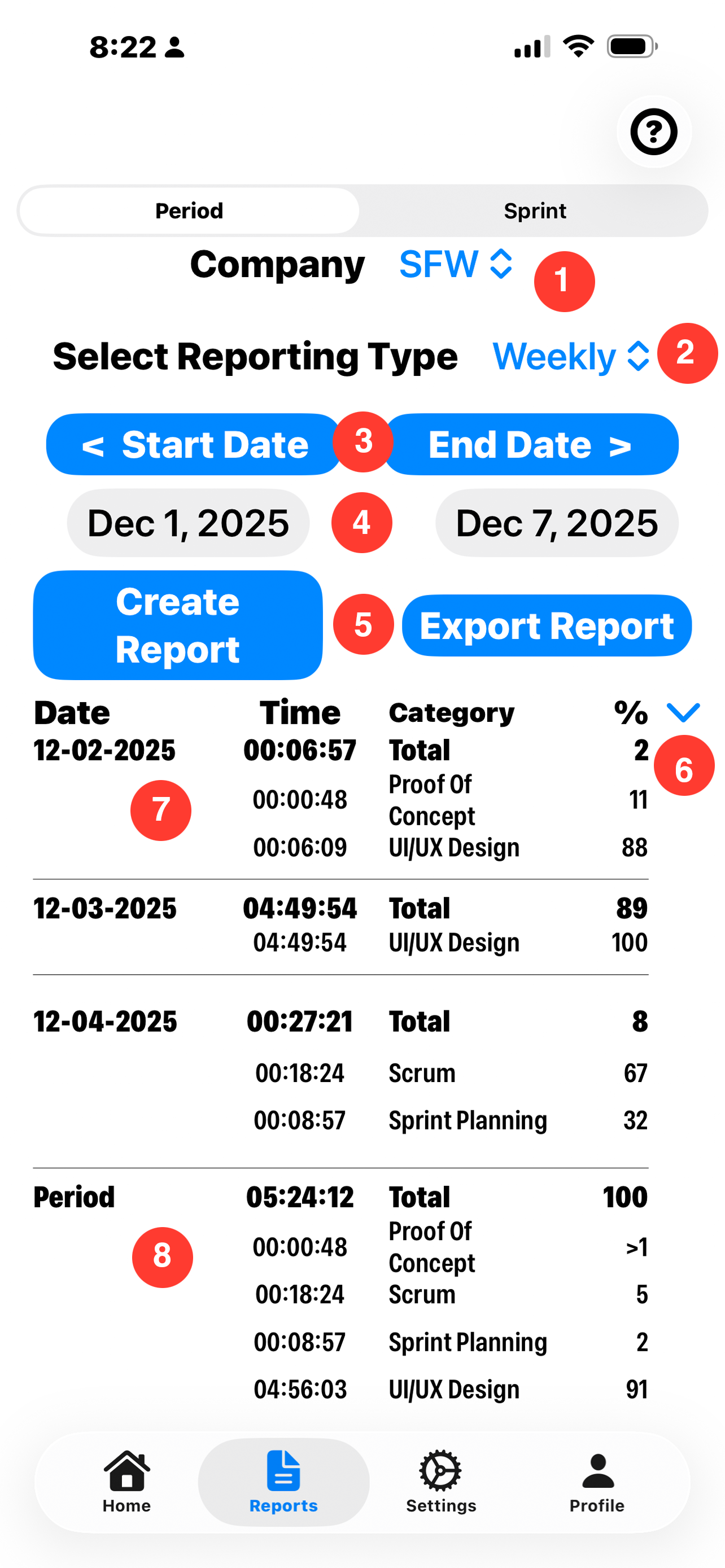
- 1. Company Selector: Tap on the company selector to change the active company.
Report Type Selection:
-
Select the type of report that matches the billing cycle. Most contractors report weekly, whereas employees report monthly or by monthly.
- 2. Reporting Type Selector: Tap on the reporting type selector to change the type of report.
- 3. Start Date, End Date Buttons: These buttons advance one reporting period at a time.
- 4. Start Date, End Date Pickers: Tapping on the dates under the buttons to set an exact start date an or ending date.
-
5. Create Report Button: Tap to generate the report.
Export Report button: Onces a report is generated, the Export Report button appears. Tap to create a file to be used in other systems.
Report Section:
-
A report is created by date. Fields are date, amount of time, the category and the percentage of time for the period for each day.
The day may be expanded to Show the amount of time and detail categories with a percentage of how time was spent for that day.
The total category is the total percentage for the period.
- 6. Expand Report Button:Tap the Chevron to see the report details.
- 7. Details Area: Details for the day. The time, category and percentage of time for the day is listed.
- 8. Period Section: This section has the time for the entire billing period. Note it's percentage is always a total of 100%. The detail section has the time for each category worked on during that period.