Sign Up
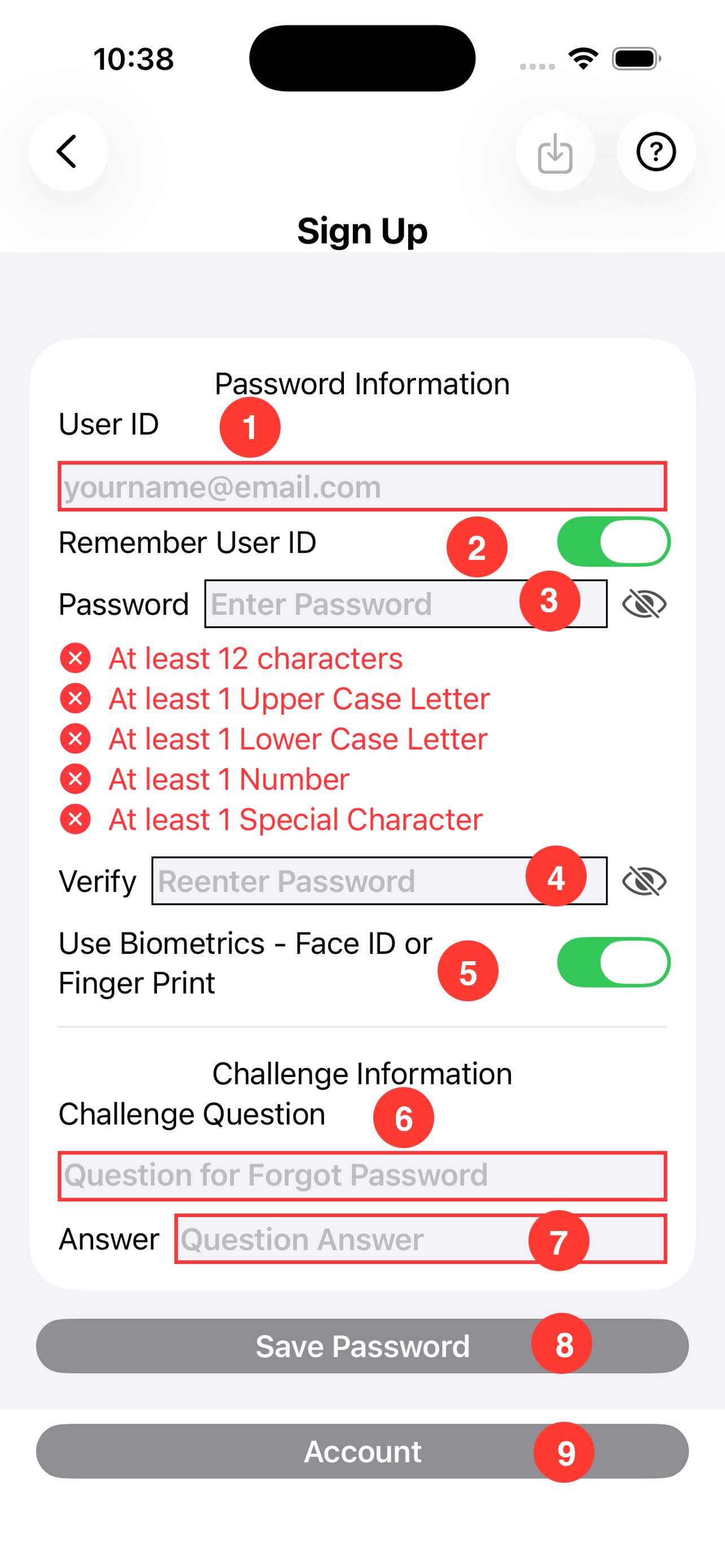
Enter your information. This data is used to send time reports to yourself. Reports can be saved to the iCloud are e-mailed to you at work.
ToolBar:
- Undo: Reverse Arrow Button: Tap to undo current changes.
- Save: Down Arrow Button: Tap to save current changes. Changed are automatically saved when the user moves to a different screen.
- Help: Question Mark Button: Tap to brings up help for the screen.
Password Information:
- 1. User ID: email address.
- 2. Remember User ID toggle: Toggle to save the user ID
- 3. Password: The user password requirements are listed below.
- 4. Verify: Re-enter the password.
- 5. Use Biometrics - Face ID or Finger Print toggle: Toggle to turn biometrics on or off
Challenge Information:
-
Make sure you select a challenge question you will not forget or save it somewhere. Time tracker is only keeping time information, it is probably not necessary to sign out of the app. Therefore, if signing out, it is incumbent on the user not to forget the password information.
- 6. Challenge Question: Enter a question that only you will know the answer.
- 7. Answer: Answer to the challenge question.
- 8. Save Password button: Tap to save the password and challenge question.
- 9. Account button: Tap to go to the account set up screen. Note this button is only shown during on boarding.