Setup Categories
Use the toggle buttons to show or hide the specific tasks.
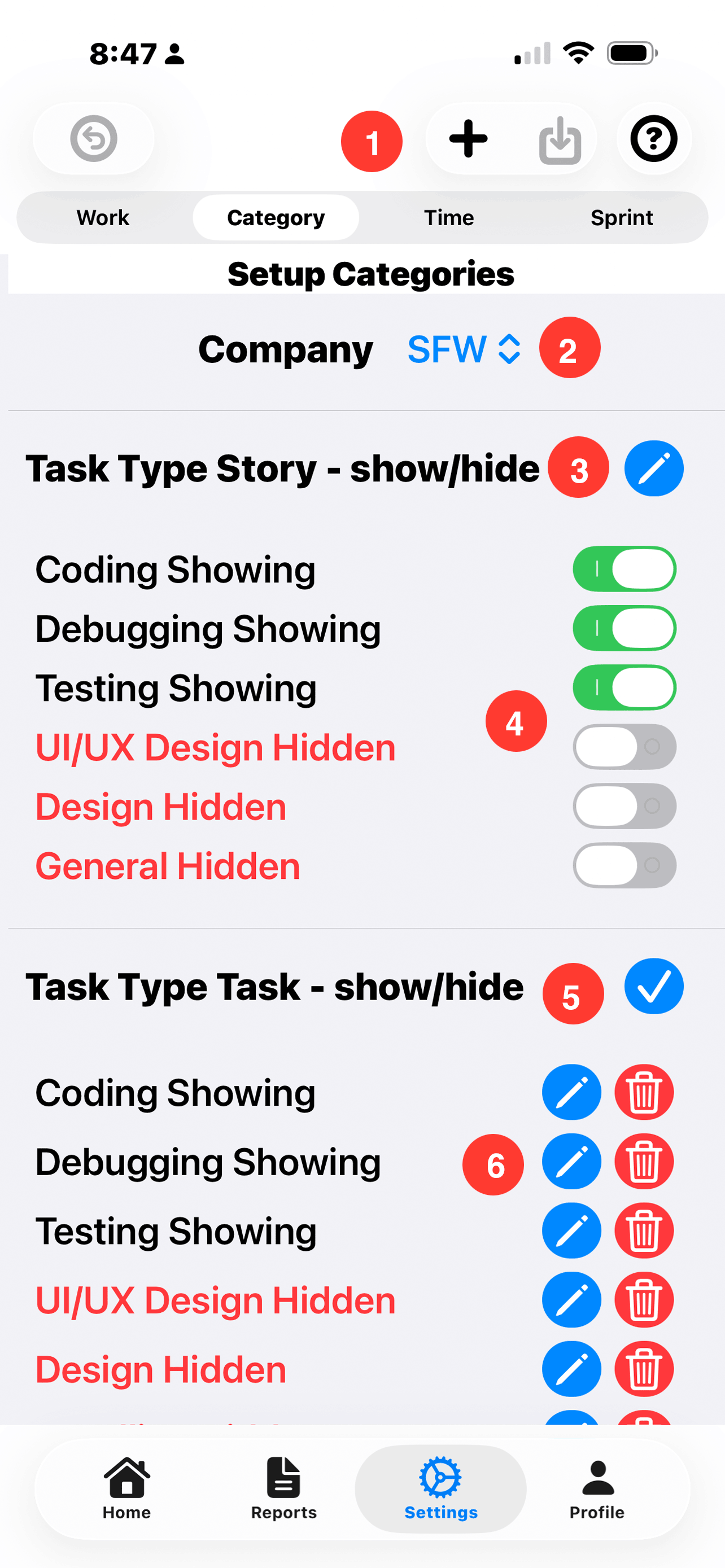
1. ToolBar:
- Undo: Reverse Arrow Button: Tap to undo current changes.
- Add: Plus Sign Button: Tap to create a new categories. The new category may be add to one or more task types.
- Save: Down Arrow Button: Tap to save current changes. Changed are automatically saved when the user moves to a different screen.
- Help: Question Mark Button: Tap to brings up help for the screen.
See Add Items to Categories below for complete details.
Company Selection:
-
The company selection is only shown when there is more than one company.
- 2. Company Selector: Tap on the company selector to change the active company.
Type Task List:
-
There are five sections in this list. The list is sequenced relative to the developers needs. (iPads Have two columns.) The section titles are as follows:
- Task Type General - show/hide: There are tasks that do not relate to a specific story. Example meetings, training, Scrums and sprint planning. The General category Task may not be hidden. General time is reported as part of a sprint. However, the time is not added to Stories. This time for a sprint shows under Admin.
- Task Type Story - show/hide: Story releated items.
- Task Type Task - show/hide: Task releated items.
- Task Type Theme - show/hide: Theme releated items.
- Task Type Epic - show/hide: Epic releated items.
Update Agile Catergory:
- 3. Pencil Button: Tap to update or delete a catergory. The pencel will change to a checkmark. (see item 5) A pencel and trashcan button is added to each category.
- 4. Show/Hide Toggles: Use the toggles to show or hide individual categories. When the toggle is on the category name is in black and will show for that particular type. When the toggle is off, the category name will be shown in red, and it will not appear on the time tracking view.
- 5. Checkmark Button: Tap when editing categories is complete.
- 6. Pencil, Trashcan Button: Tap the pencil to edit a single category. (see Update a Category Item below)
Tap the trashcan to delete the category.
Project Roll Up:
-
Time Tracker
does not
maintain the relationships between Themes, Epics, Stories and Tasks. The
objective of time tracker is to add this information into the Jira system,
which does know the relationship between each of these elements.
Setup Categories -
Setup Categories -
Add Items to Categories
As many new categories as desired may be added.
Custom Catergory Setup - Add New Item:
-
If the default categories do not meet you needs, tapping the + sign on the ToolBar to create a new category.
For example, you wish to track the time spent doing Research.
Agile Types:
- General - This is use for time spent which is not task related. Such as meetings.
- Theme
- Epic
- Store
- Task
Add Category Type:
-
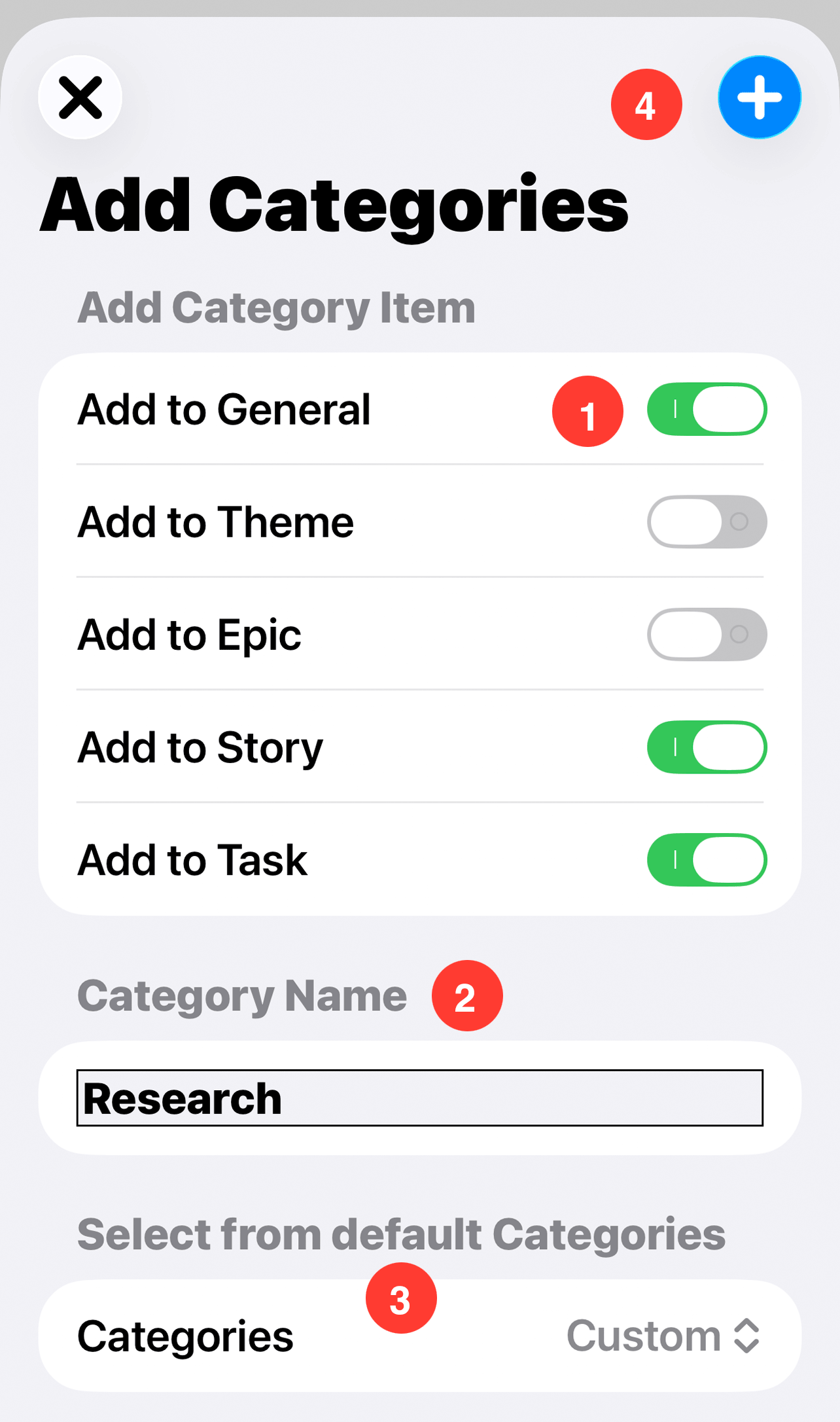
1. Add Toggle: Each agile type has a category toggle. Turn on the toggles for the types that you wish to add this new category.
In this example, the Research category will be added to General, Story, Task types. Theme and Epic will not get the new category.
- 2. Category Name: The Category name should be descriptive, but short. Preferably one or two words.
Select from default categories:
- 3. Categories Drop Down: A list of default categories is provided. Either choose a name from the list or enter a the desired name in the category named field.
Complete add categories:
- 4. Add button: Tap the X to cancel or the + to add the new category.
Update a Category Item
When a category item is updated, it does not change the category name on any existing time records. Consider creating a new category if time is logged to the current category.
Category Name:
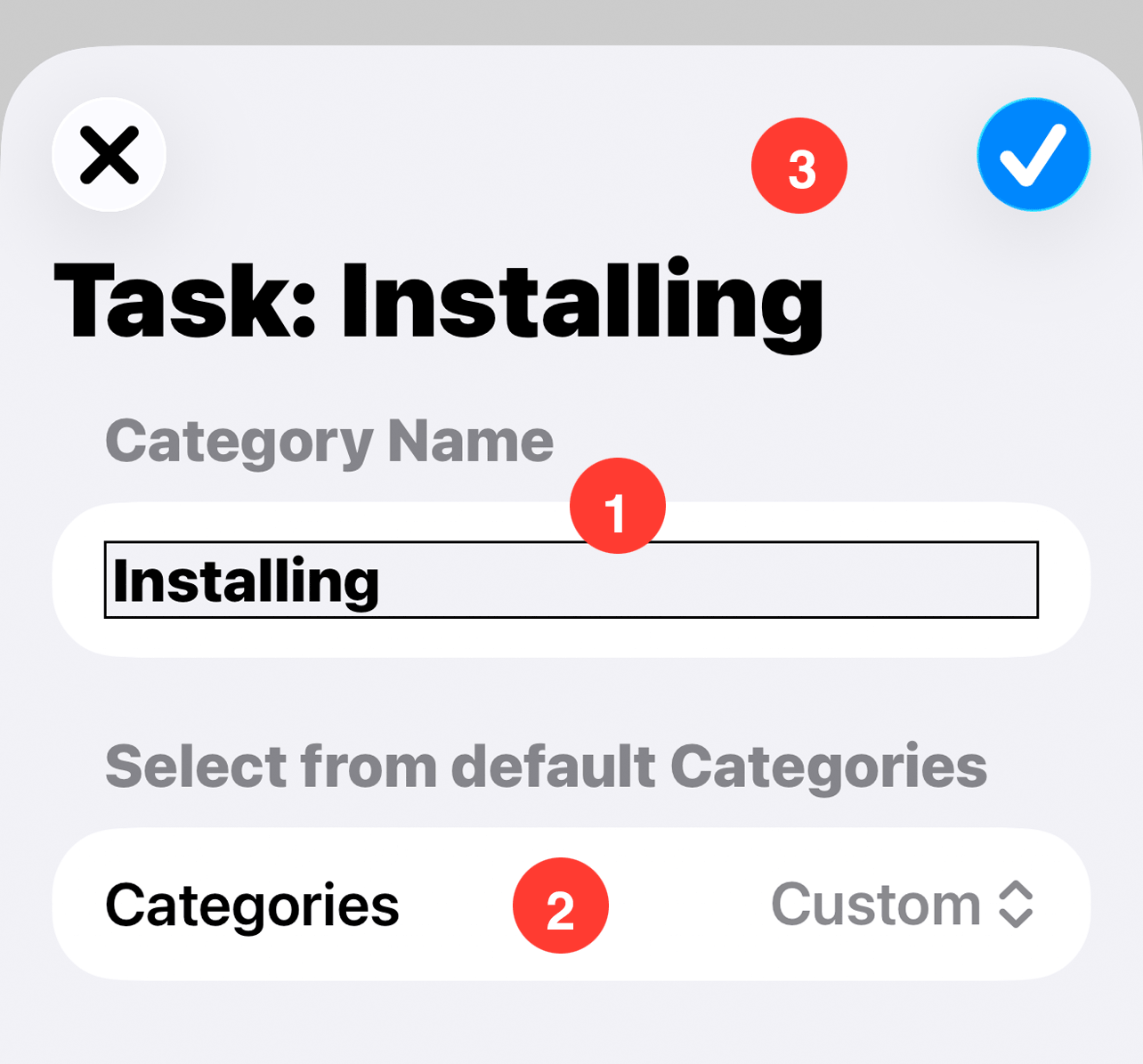
- 1. Category Name: Change the Category name as needed.
Select from default categories:
- 2. Categories Drop Down: A list of default categories is provided. Either choose a name from the list or enter a the desired name in the category named field.
Complete Update Category:
- 3. Update button: Tap the X to cancel or the checkmark to update the category.