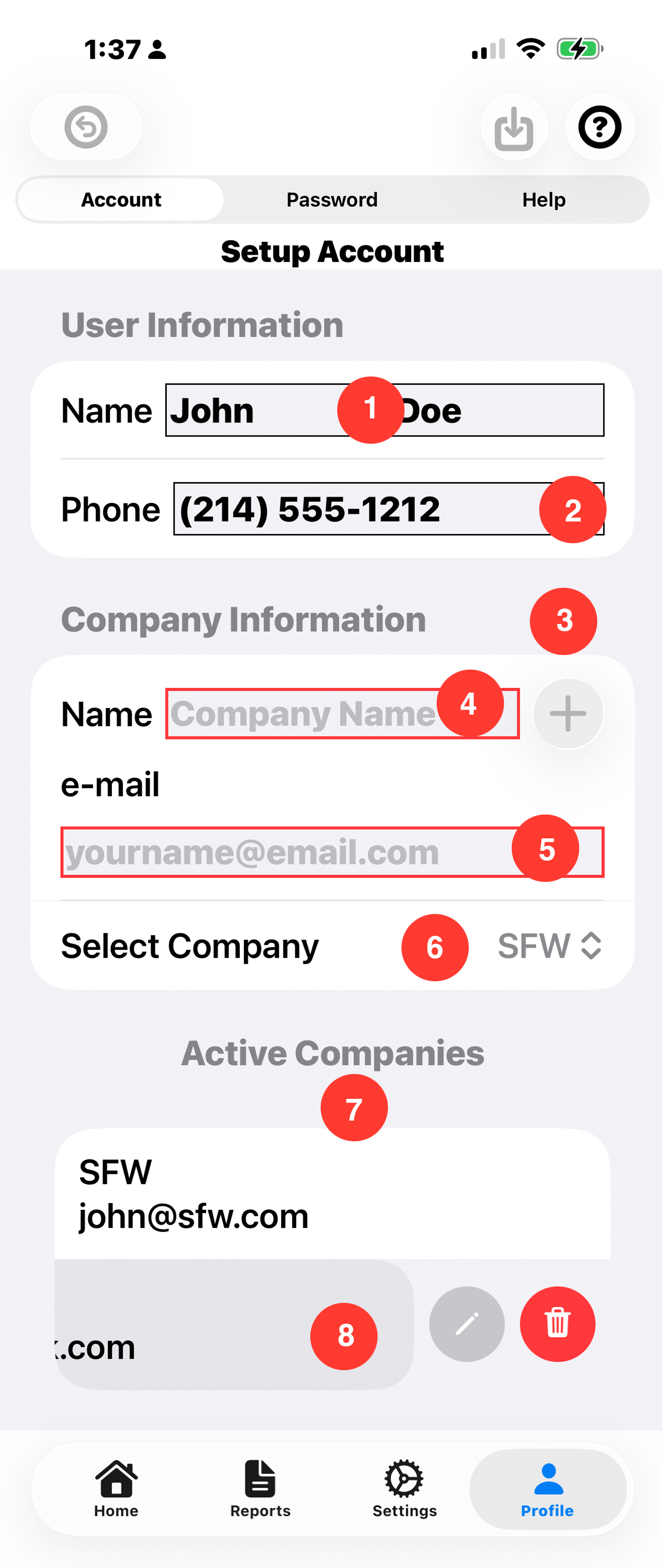
Setup Account
Enter your information. This data is used to send time reports to yourself. Reports can be saved to the iCloud are e-mailed to you at work.
ToolBar:
- Undo: Back Circle Button: Tap to backout the current changes.
- Save: Down Arrow Button: Tap to save the current changes. Changed are automatically saved when the user moves to a different screen..
- Help: Question Mark Button: Tap to brings up help for the screen.
User Information:
-
This data is used to send time reports to yourself. Reports can be
e-mailed to you e-mail address which is your user id entered on the
passwork set up view.
- 1. Name: User's' first and last name.
- 2. Phone: The phone number allows easy texting of data.
Company Information:
-
Time Tracker is designed to handle mutiple companies. Enter your company
information here. A minumum of 1 client is requried. If you do not have a
company to set up, then please enter a
''SELF''
as the company name.
- 3. Add Button: The Add Company button is enabled when all company information is valid. Tap the button to add this company to the active companies list.
- 4. Name: Company Name of your current employer.
- 5. e-mail: Company e-mail address. If you do not want to save reports to the iCloud, then the report can be set to this e-mail.
- 6. Select Company: Use this drop down to change companies if desired. If there is only one company set up then the company selection option is not show.
Active Companies:
- 7. List of current companies: At least one company must be defined at all times.
- 8. Swipe left: Swipe to edit Company Information, or to delete company information. If there is time logged for the company, then there will be an alert message.
Mutipule Companies
If you have mutipule companies set up, you can switch between companies with ease. You may wish to keep the data for older companies to allow you to see the difference in performance.