Calendar
The calendar tab on the home screen allows you set up events to automatically change to tasks such as Meeting or Scrum.
ToolBar:
-
The ToolBar is used to add new Events..
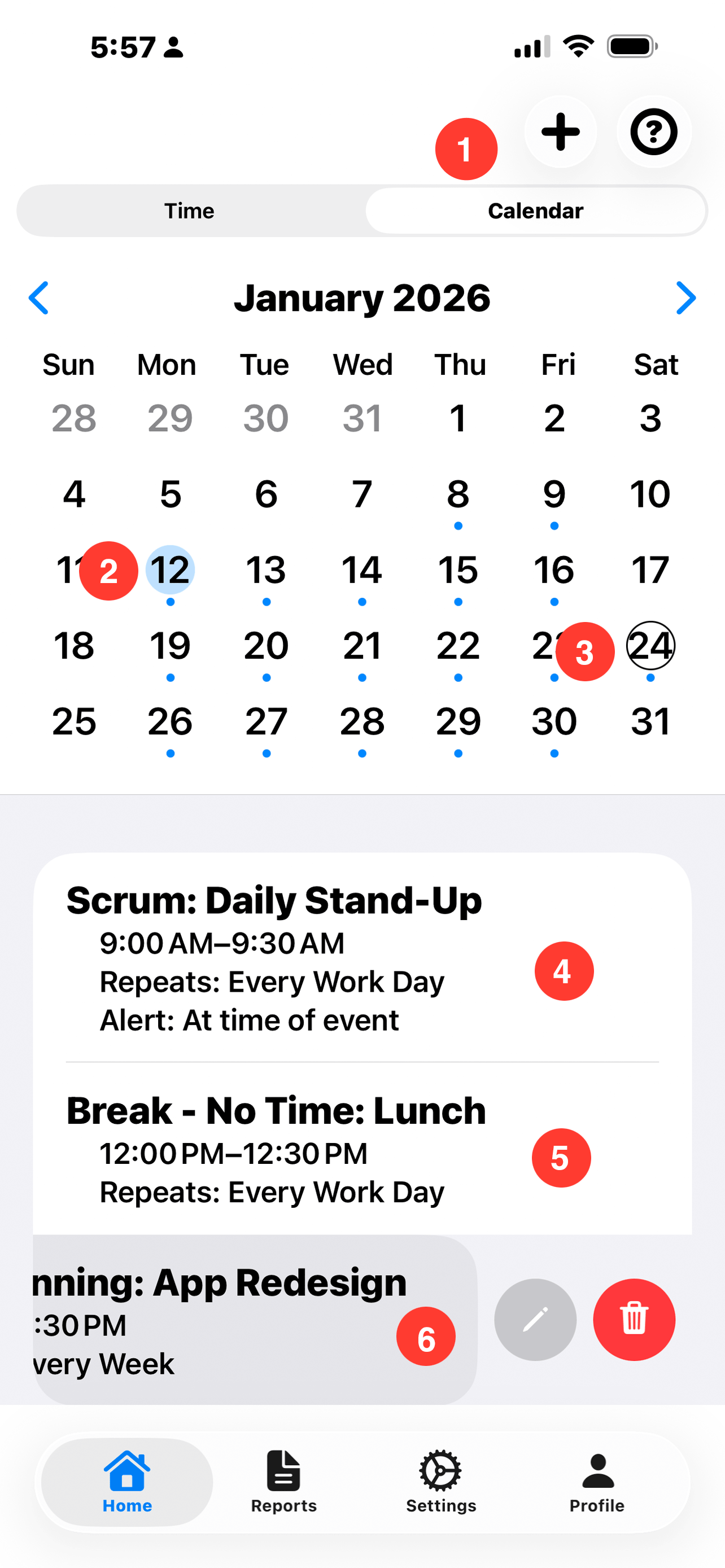
- 1. Add: Plus Sign Button: Tap to create a new event.
- 1. Help: Question Mark Button: Tap to brings up help for the screen.
Calendar Section:
-
Use the left and right Chevron's to change the month.
- 2. Selected Day: The blue circle on the number indicates this is the currently selected date.
- 3. Current Date: The current date will have a circle outline.
Events Section:
-
List of events for this day. This allows the user to switch to upcoming events such as a meeting or a Scrum without having to clock out of the current task and clock into the meeting or Scrum task.
- 4. Scrum event: This example shows setting up a daily Scrum. It repeats every workday and has an alert at the time of the event.
- 5. Break event: This event does not record any time. You may wish to set up a event such as lunch so that time tracker will automatically clock out during lunch and you do not accidentally record time towards your sprint while you are eating.
- 6. Swipe left: Swipe to either edit or delete an event.
Calendar and Event Creation -
Calendar and Event Creation -
Create New Event
Events in time tracker are used to notify you about upcoming task such as the daily Scrum meeting. You may also create events to pause time recording when taking a break, such as lunch. If you will be out of the office, you may create and out of office event that will turn off the automatic functions that time tracker provides. In this way, you can avoid accidentally logging time when out of the office.
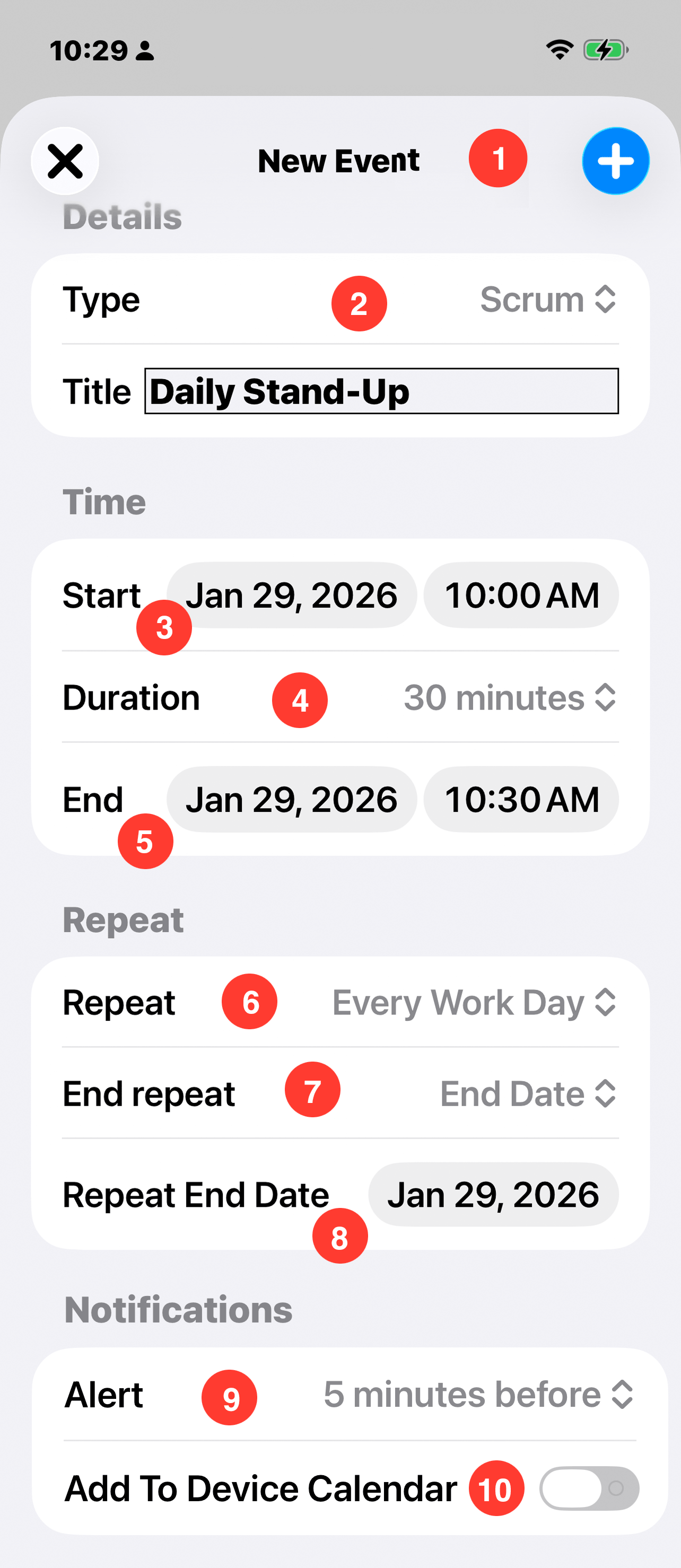
New Event buttons:
- 1. + Button: Tap to save the new event once it is complete.
X Button: Tap to save the new event once it is complete.
Details:
- 2. Type Drop Down: A list of default tasks is provided. These are all tasks from the general category. If your desired task is not in this list, it needs to be added to the general category.
Title: The Event Title is displayed after the event Type in the event list.
Time:
- 3. Start Time Date Picker: Tap to change the event start time.
- 4. Event duration Drop Down: Changing the event duration automatically adjust the end time for the event. Changing the end time or start time does not change the duration. Therefore, the corresponding dates are updated to adjust to the new duration..
- 5. End Time Date Picker: Tap to change the event end time.
Repeat:
- 6. Repeat Drop Down: Tap to select the desired repeat pattern.
- 7. End Repeat Drop Down: When an event is repeating, you may set an end repeat of never or a specified date.
- 8. Repeat End Date Picker: Tap to set the date. The event should stop repeating.
Notifications:
- 9. Alert Drop Down: Select the time you wish to be notified about the upcoming event.
- 10. Add To Devic Calenday Toggle: If the toggel is selected, the event is added to the user's calendar.