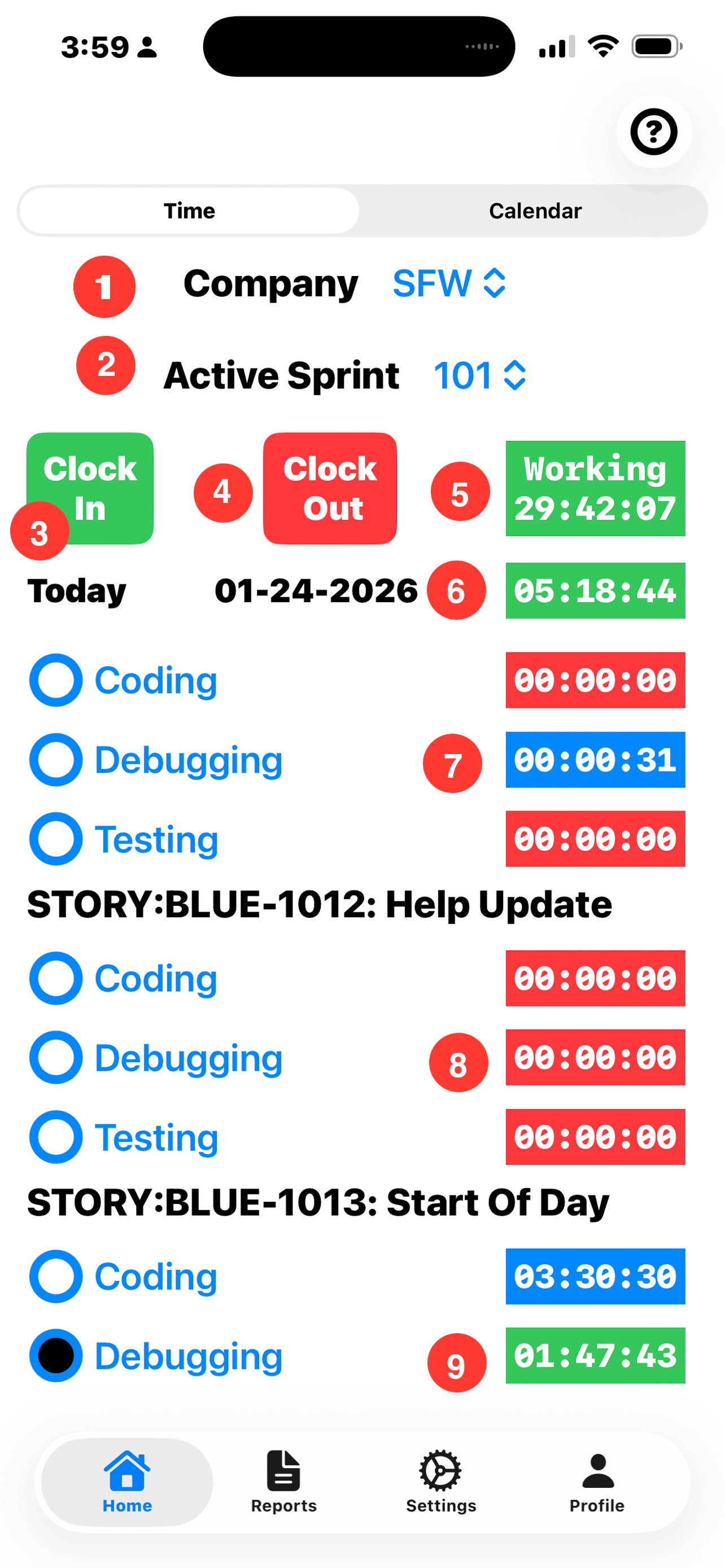
Time Tracker - Home
The time tab on the home screen allows you to clock in or out and select, which task or category you wish to be logging your time.
Time Tracking for Projects -
Time Tracking for Projects -
ToolBar:
- Help: Question Mark Button: Tap to brings up help for the screen.
Company and Sprint:
- 1. Active Company: The company name is only shown if you have defined more than one company.
- 2. Active Sprint: This drop-down allows you to select the current active sprint.
Clock In/Out:
-
Time Tracker is designed to allow you to easily start and stop recording time.
- 3. Clock In: Tap clock in to start recording time. The button will turn green when clock in.
- 4. Clock Out: Tap clock out to pause record recording time. The button will turn green when clock out.
-
5. Total Time: This field shows the total amount of time for this Period.
When Clocked In the title is Working and the field is Green.
When Clocked Out the title is Stopped and the field is red.
- 6. Today Time: Today shows the current date followed by the total amount of time logged for today. This field is Green when you are clocked in and red when you are clocked out.
Task List Information:
-
List of the general task, followed by the stories and task for this sprint. Note, each story or task will start with STORY or TASK. The story number follows, and an optional description. The description is not required because JIRA has the details of this story.
-
7. Task Item: Each line has the following information.
- Radio Button: tap this button to make this the active task.
- Task Description: Type of task, such as general coding or the bugging.
- Time: Accumulated time for this task. The time field is blue when time was accumulated today.
- 8. Time field red: No time has accumulated for this task.
- 9. Time field green: Task is the active and clocked in. To change the active task, tap on the description for the desired task. Example, if you wanted to change the type of time being accumulated tap on the word coding or the radio button.